
Allow location, camera and photos
What the app needs from your phone to clock you in and track your shift — and how to turn it on.
- 1
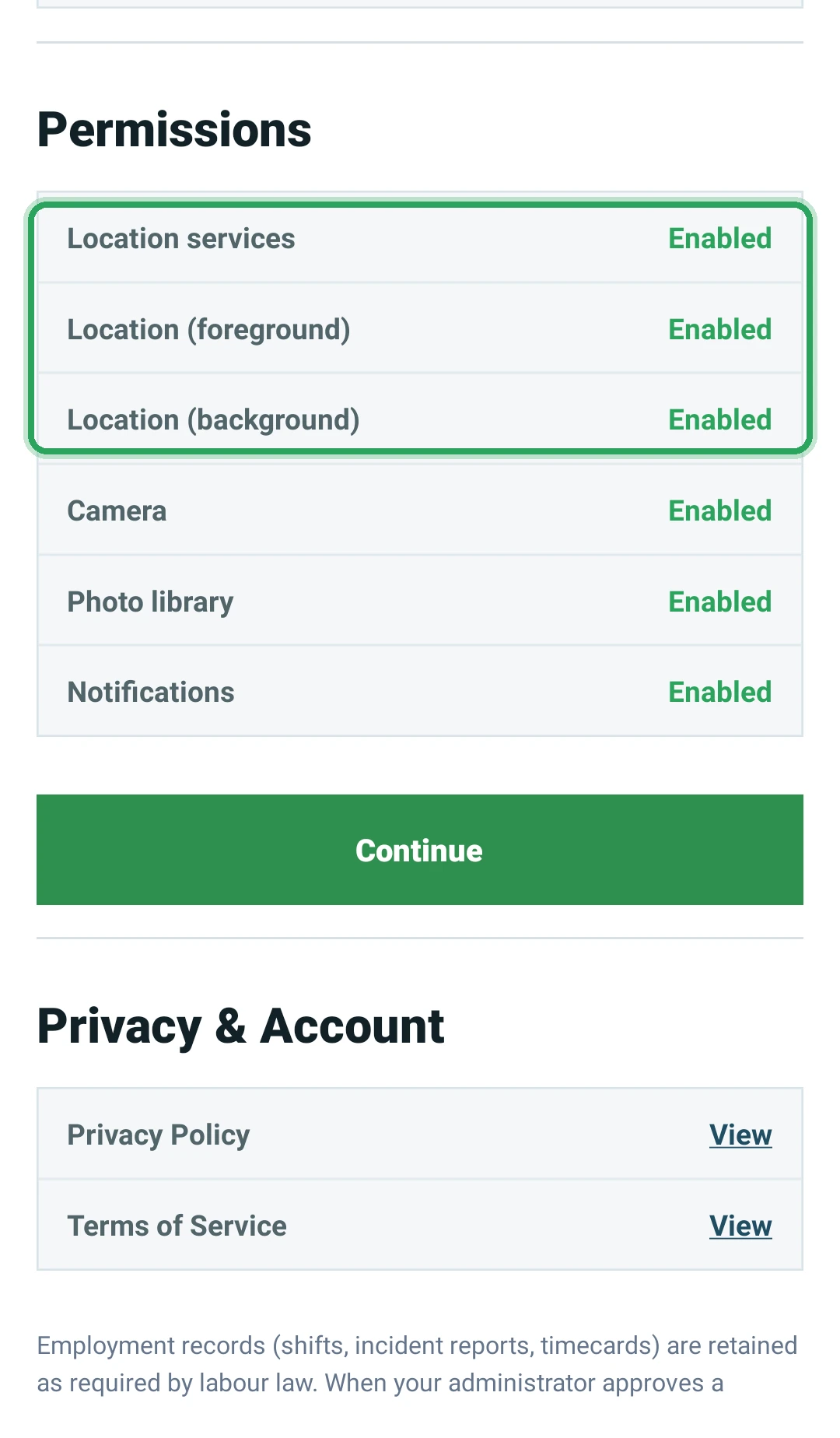
If you see Duty unavailable at the top of the app, something the app needs is turned off. Tap Continue and allow each request.
- 2
Location: choose Allow all the time (Android) or Always (iPhone). The app uses it only while you're clocked in, to confirm you're on site.
- 3
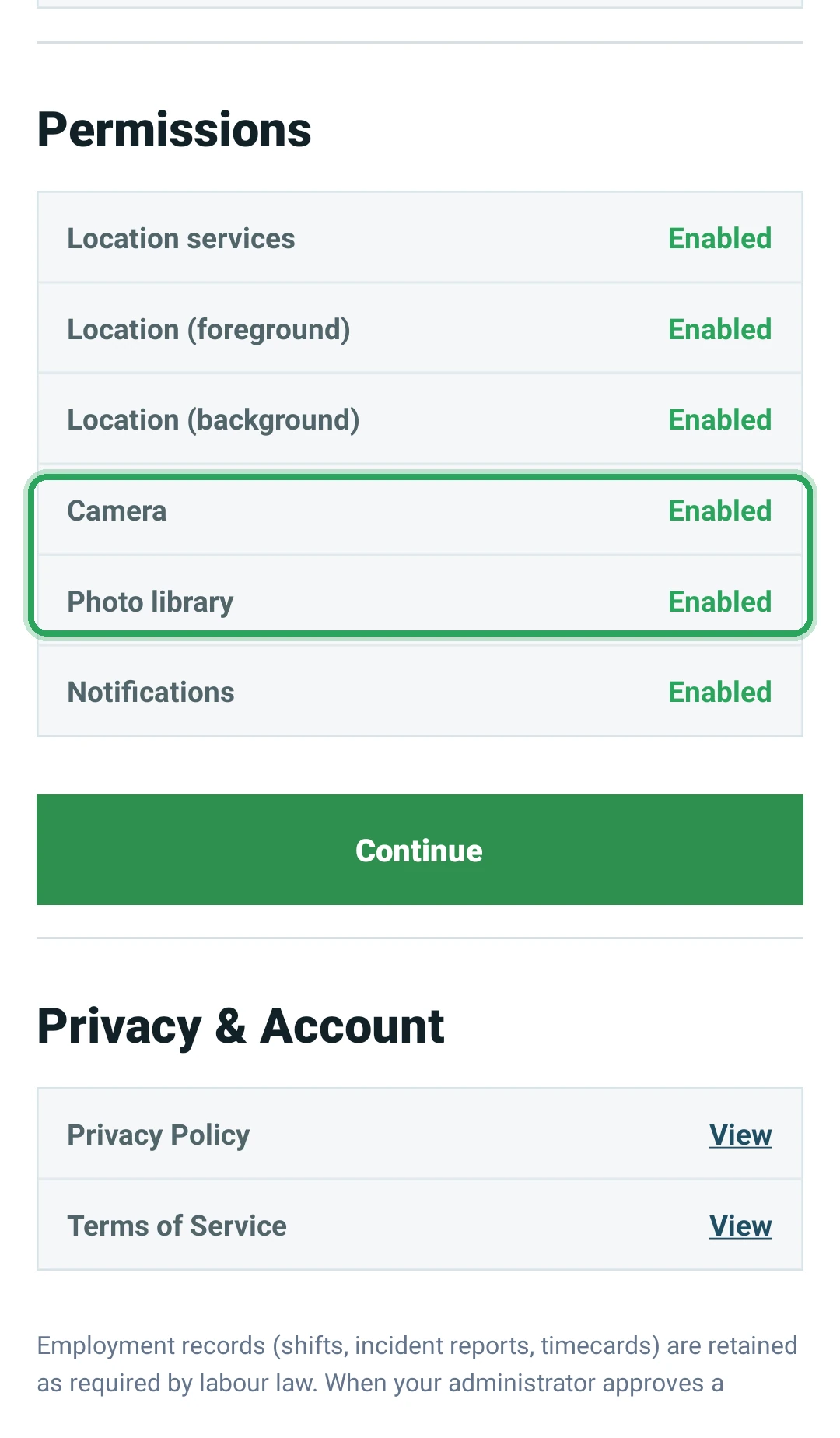
Camera is for scanning patrol checkpoint QR codes. Photos is for attaching a picture to an incident report.
- 4
If you said no before, Continue opens your phone's Settings. On Android: Settings → Apps → Command Station → Permissions. On iPhone: Settings → Command Station.
Good to know
- Your location is never tracked before you clock in or after you clock out.
- You can check every permission in the app under Profile → Permissions.
More in The staff app
Install the Command Station Guard appSign in to the appSee today's and upcoming shiftsClock out at the end of your shiftFile your daily reportReport an incidentScan patrol checkpoints (guard tour)Your profile, hours and permissionsAsk for your account to be deletedStill stuck? Our team is happy to help.Contact support