
Set up Command Station in five steps
The quickest path from a new account to your first clock-in: add a site, add your staff, schedule a shift, assign it, and get your staff on the app.
- 1
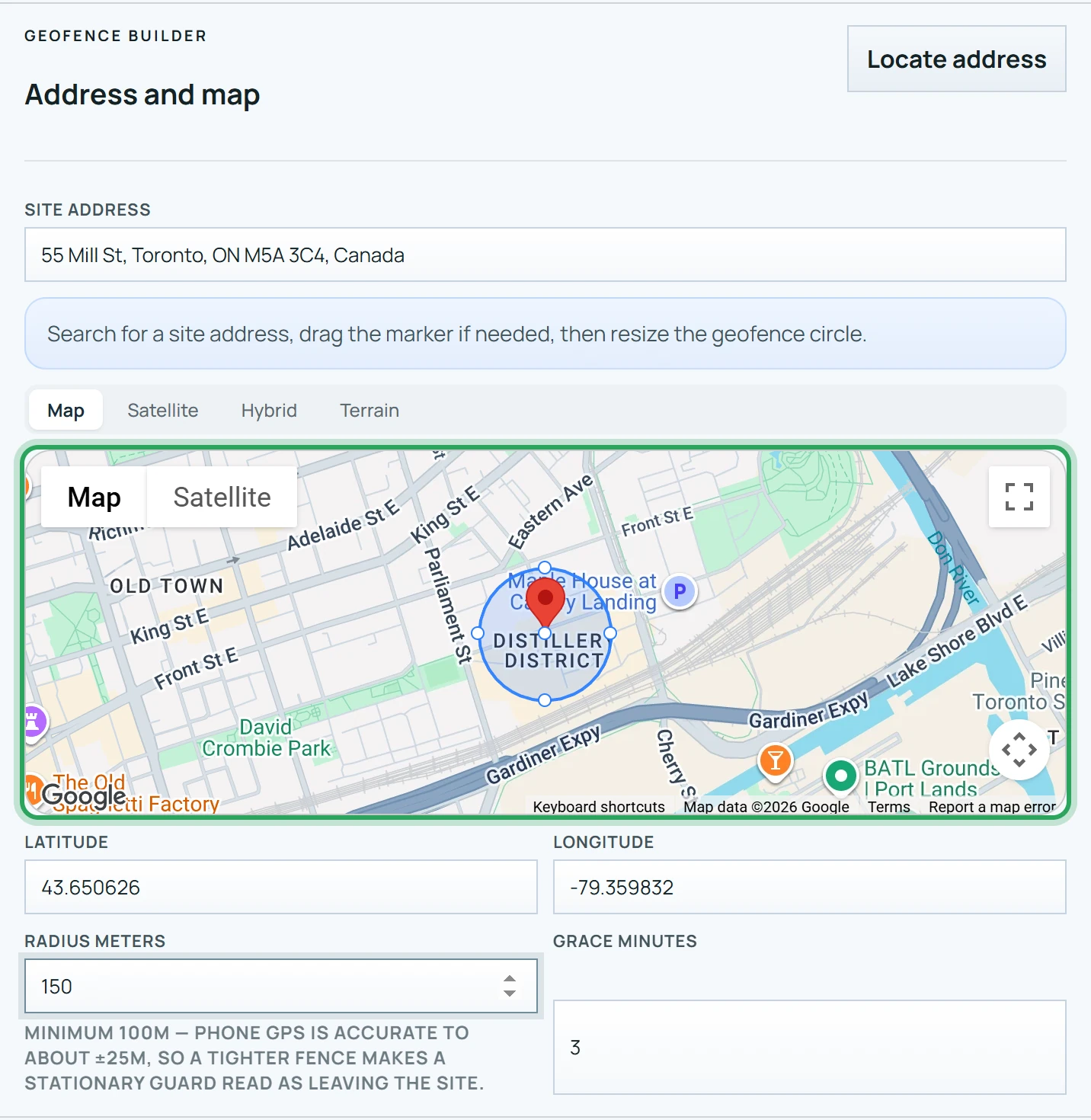
Add your first work site. Open Sites, click Create site, find the address on the map and size the geofence — the circle that counts as being at work.
- 2
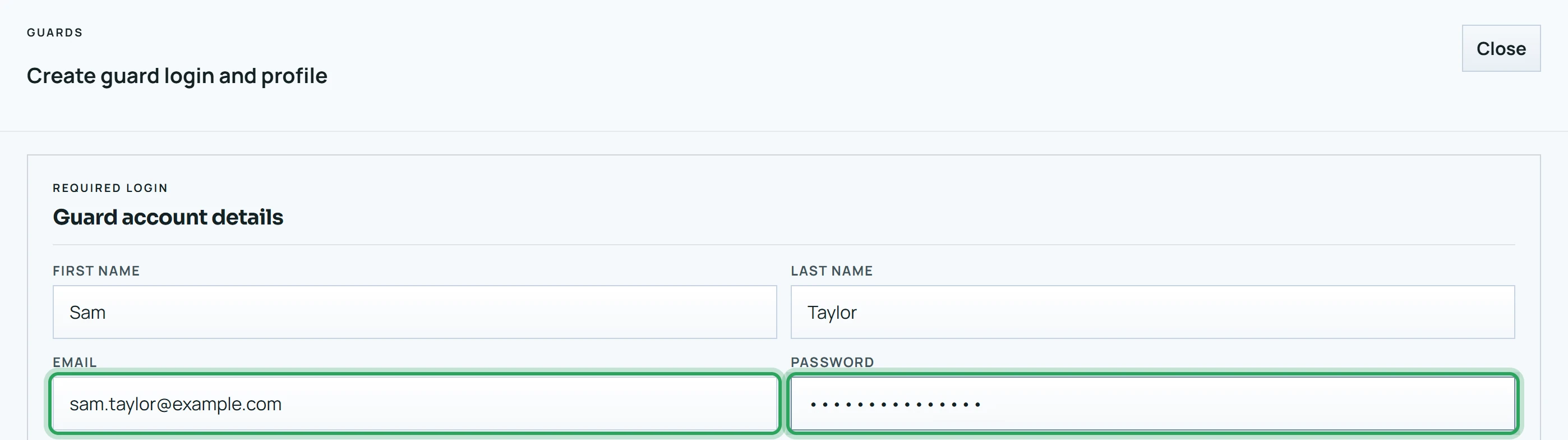
Add your staff. Open Team and click Create guard for each person. The email and password you set there are their login for the staff app.
- 3
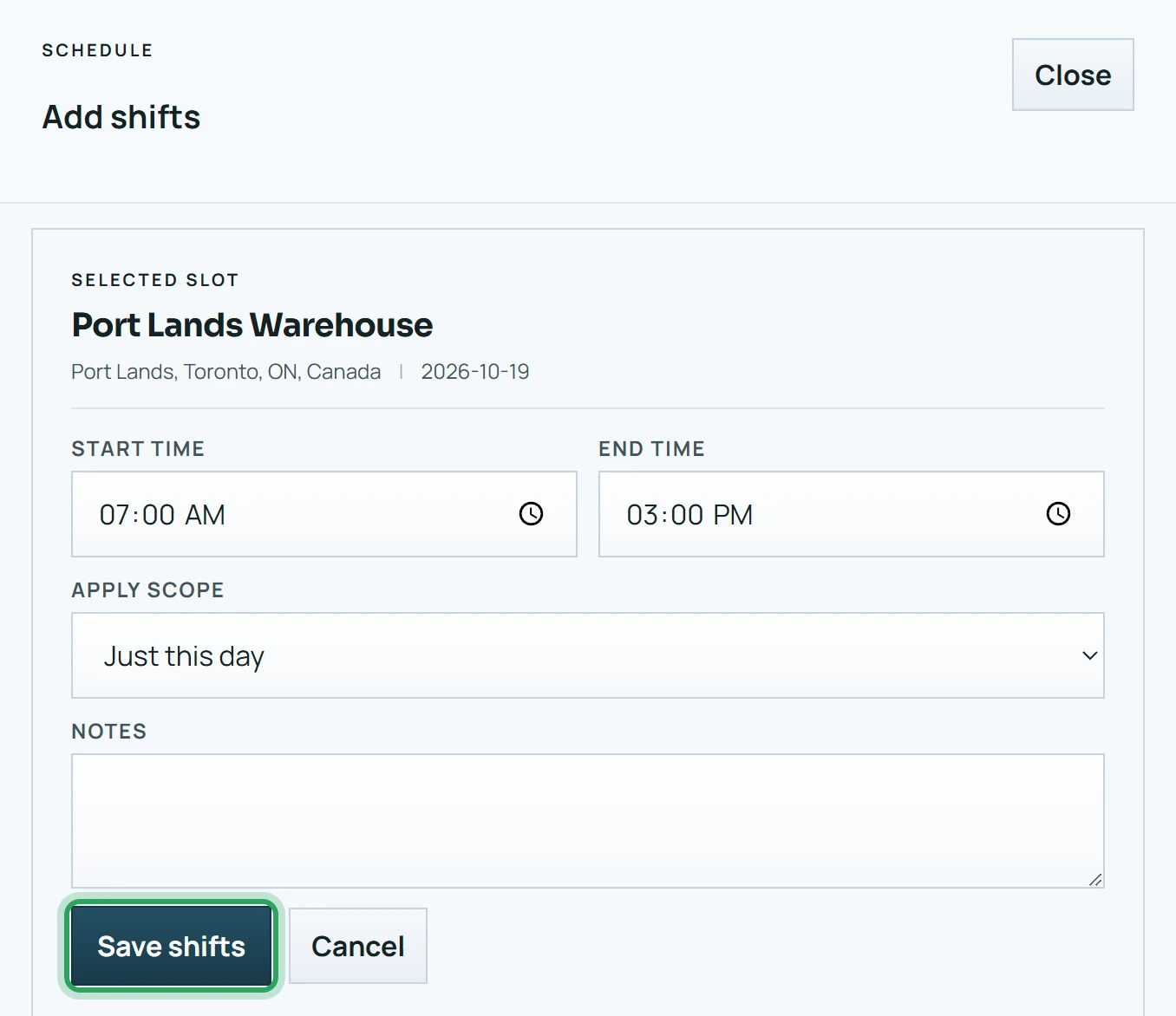
Schedule shifts. On the Operations Board, click + Add shifts in a green day cell under your site, set the start and end time, and click Save shifts.
- 4
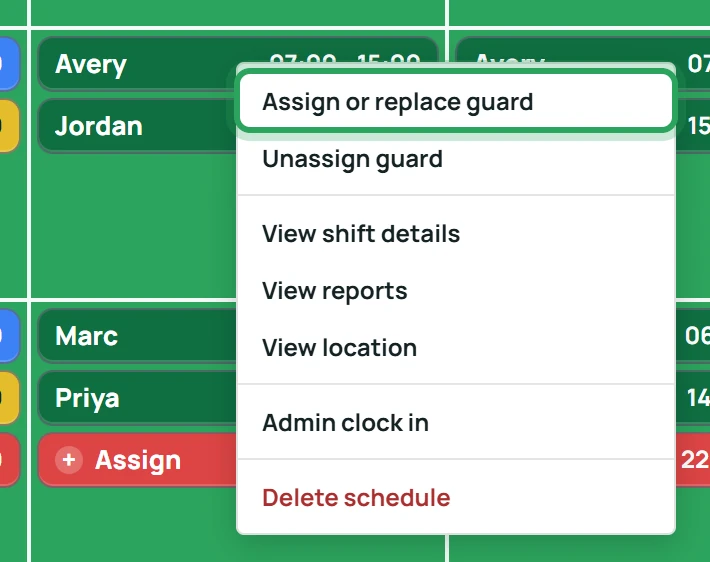
Assign people. Right-click a shift, choose Assign or replace guard, pick the person and click Assign guard.
- 5
Get your staff on the app. They install the Command Station Guard app, sign in with the login you created, and clock in when they arrive at the site.
- New shifts start as open (red, with + Assign) and turn dark green once someone is assigned.
- Every date and time in the portal and the app is shown in the site's time zone (your company's, unless you give a site its own), wherever the viewer is.