
Why can't I clock in?
The messages that block clock-in, and what to do about each one.
- 1
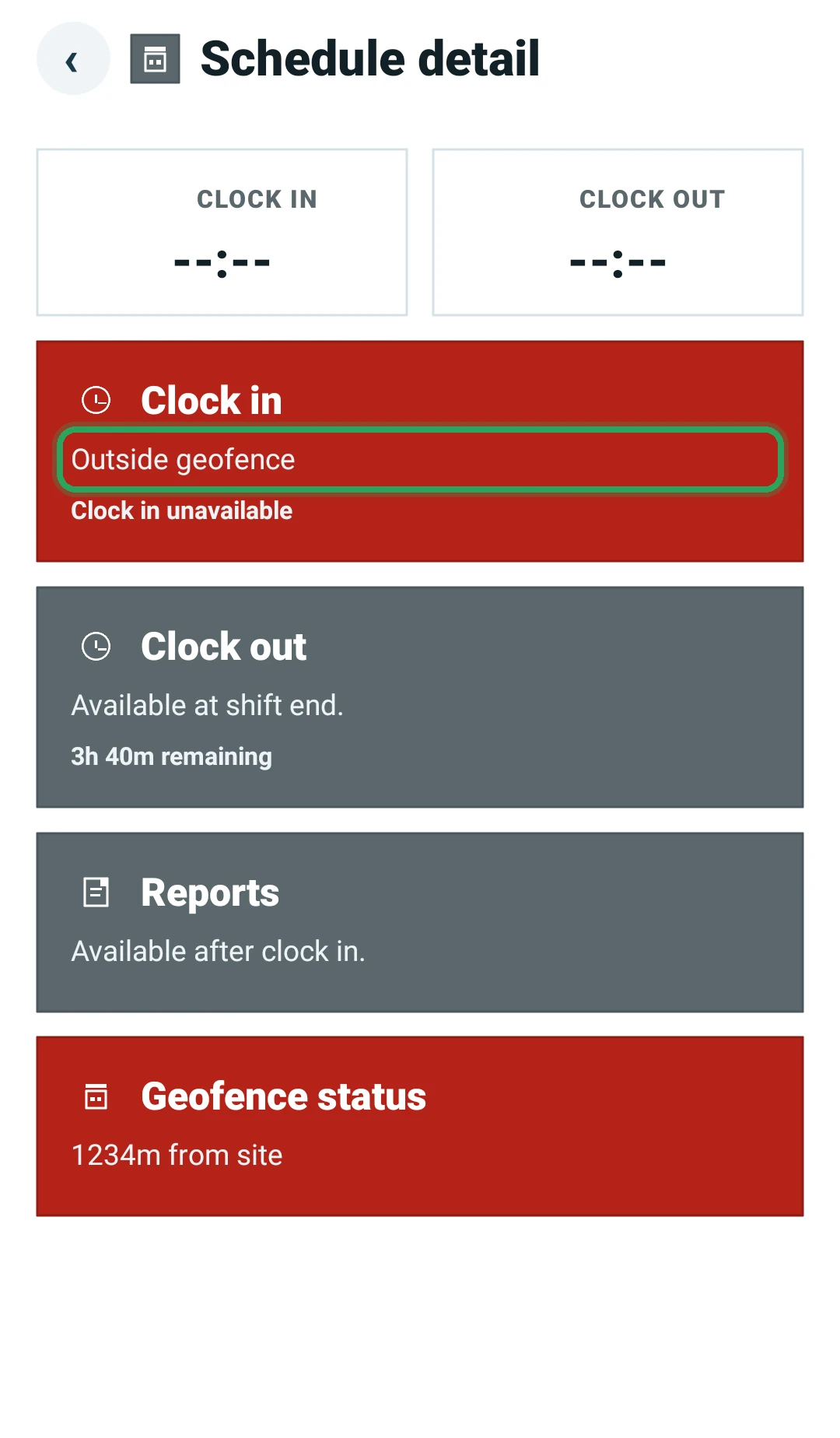
Outside geofence or Clock in unavailable — you're not inside the site's area yet. Walk onto the property; the button unlocks when you're inside.
- 2
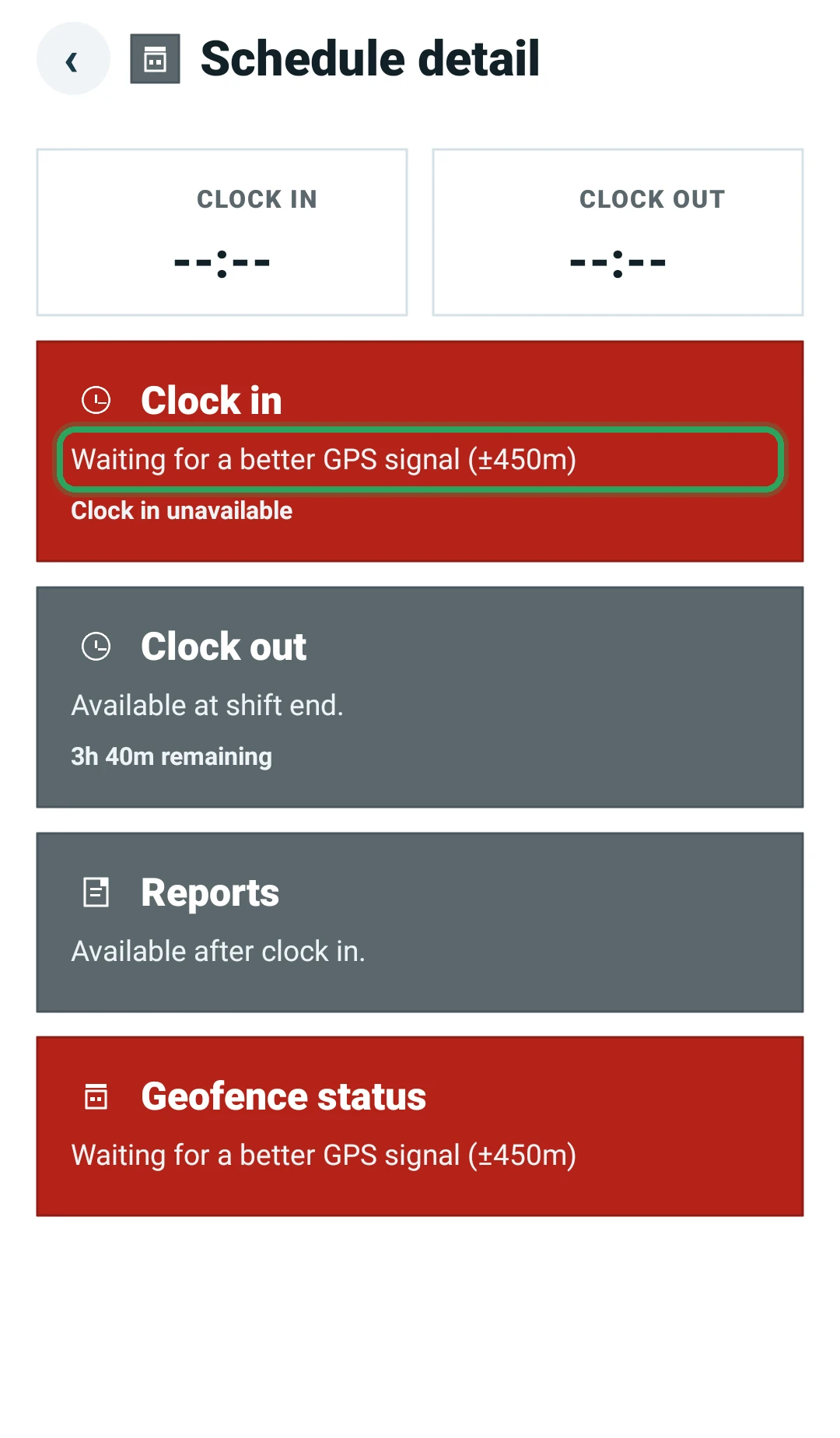
Finding your location… or Waiting for a better GPS signal — the phone doesn't have a good fix. Step outside or near a window and wait a few seconds.
- 3
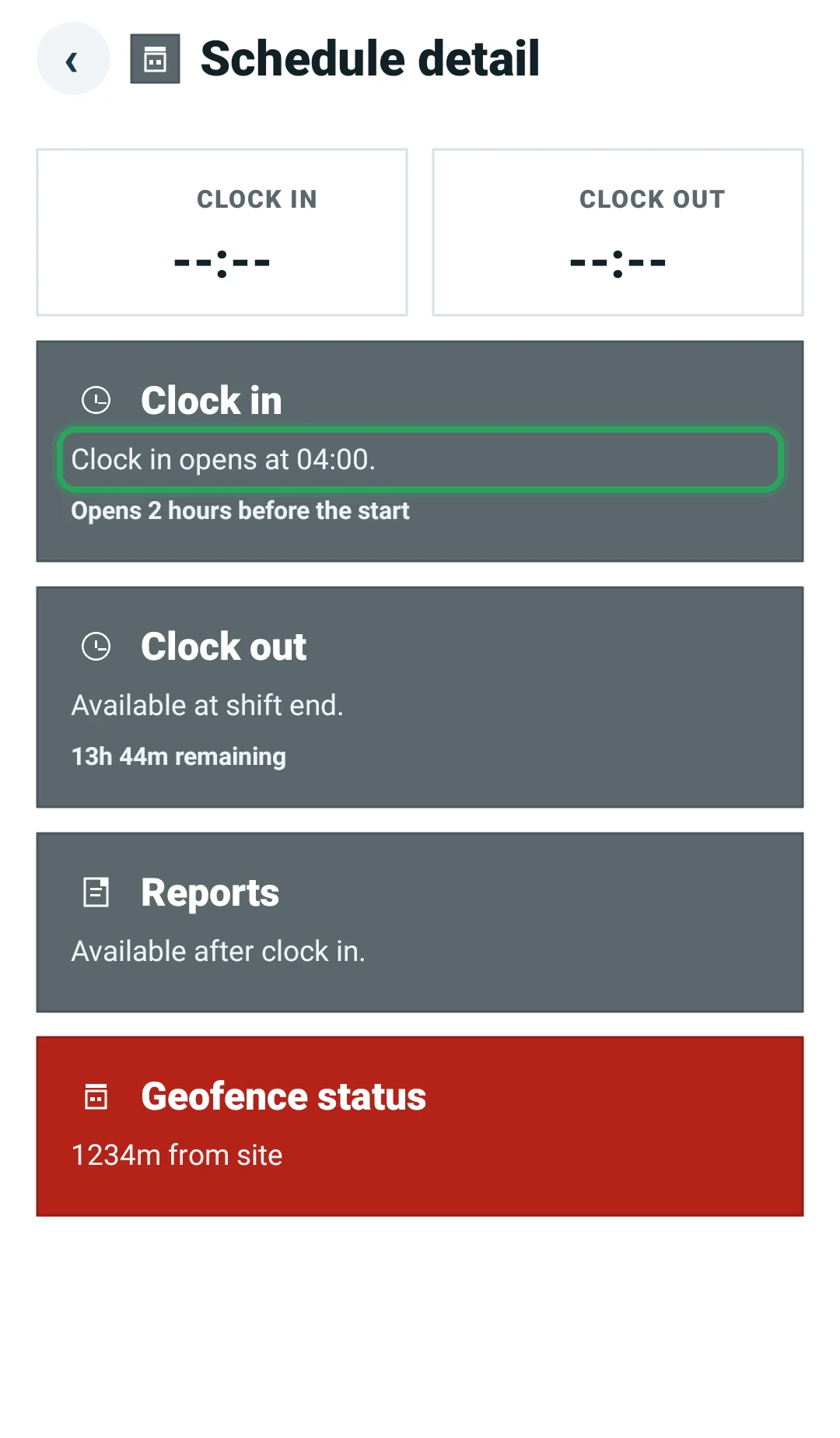
Clock in opens at 20:00. (or It's too early to clock in for this shift.) — clock-in opens 2 hours before the start. Come back then.
- 4
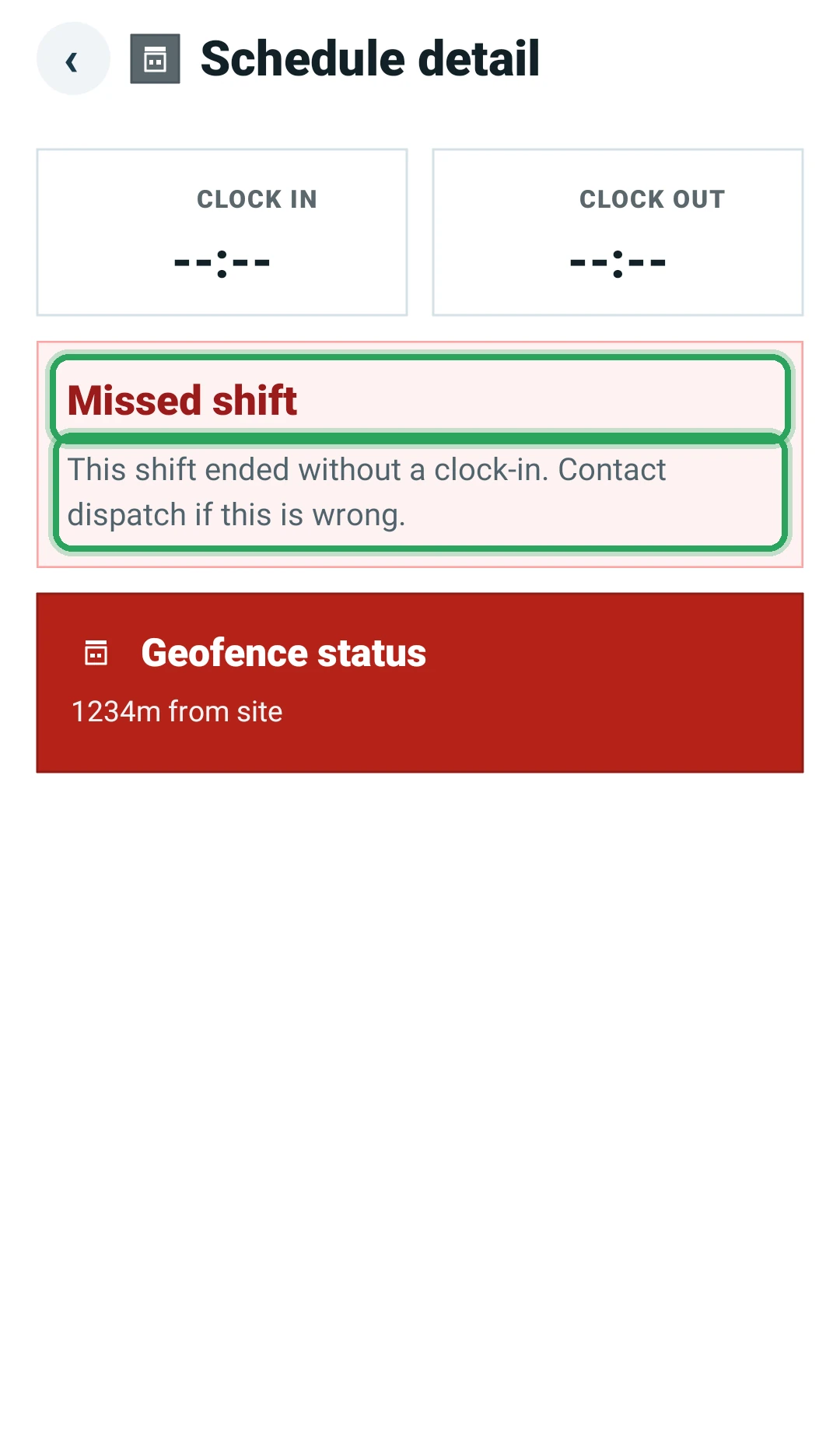
Missed shift (“This shift ended without a clock-in.”) — the shift is over, so it can't be clocked into. Ask your manager to record your time.
- 5
Clock in/out needs Location Services or Location access is blocked — turn location on for the app (see “Allow location, camera and photos”).
- 6
Your phone is reporting a simulated location. — turn off any fake-GPS or location app, then try again.
- If you're on site and still blocked, tell your manager — they can clock you in from the portal.