
Edit a site
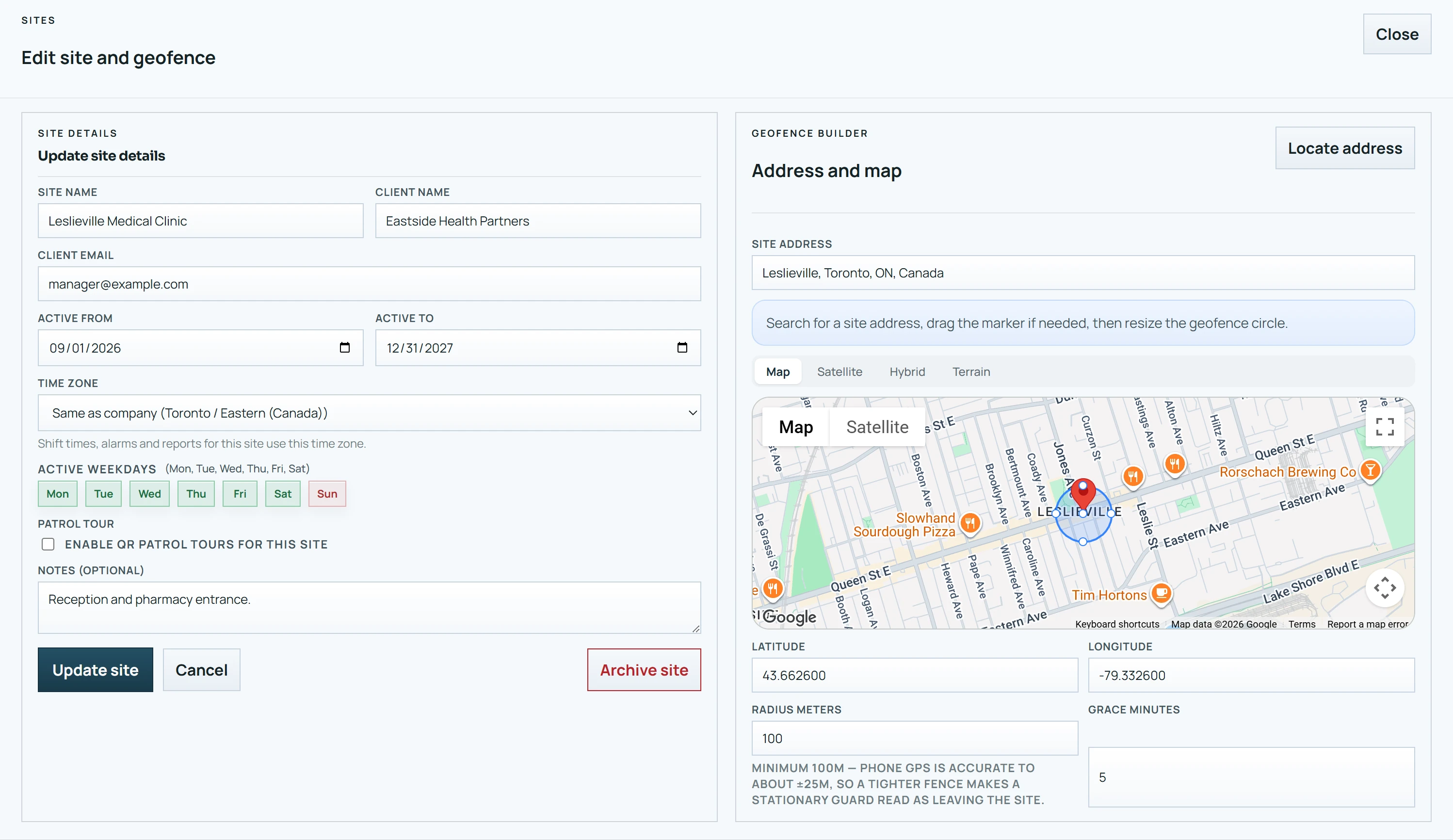
Change a site's name, client details, dates, open days, address or geofence.
- 1
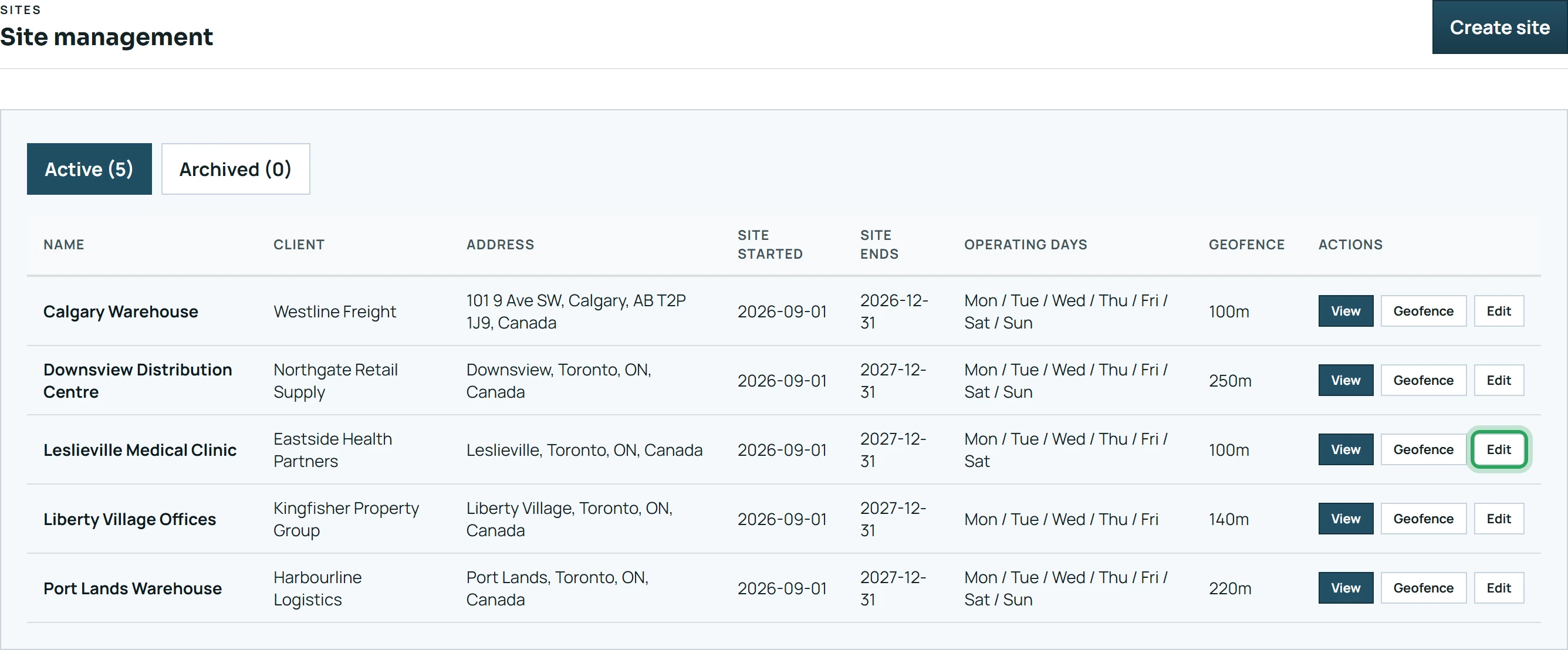
Open Sites and click Edit next to the site.
- 2
Change what you need — the details on the left or the address and circle in the Geofence Builder on the right.
- 3
Click Update site. You'll see “Site updated successfully.”

Good to know
- Each shift keeps the Grace minutes the site had when the shift was created. Changing it only affects shifts you create afterwards.
- Changing a site's Time zone asks what to do with its upcoming shifts: Keep their times (08:00–16:00 stays 08:00–16:00, now in the new zone) or Keep the same moments (the shifts don't move, so their times read differently). A shift starting too soon to keep its time keeps its moment instead, and shifts that have started or finished never change.
- Before you remove an open weekday or shorten the site's dates, delete or reassign the shifts on those days — they stop showing on the board but still exist in your staff's app.
Related
Add a work site and its geofenceSites in different time zonesArchive, restore or delete a siteStill stuck? Our team is happy to help.Contact support