
Find your way around the portal
What each menu does, what the clock in the corner shows, and the buttons at the bottom of the sidebar.
- 1
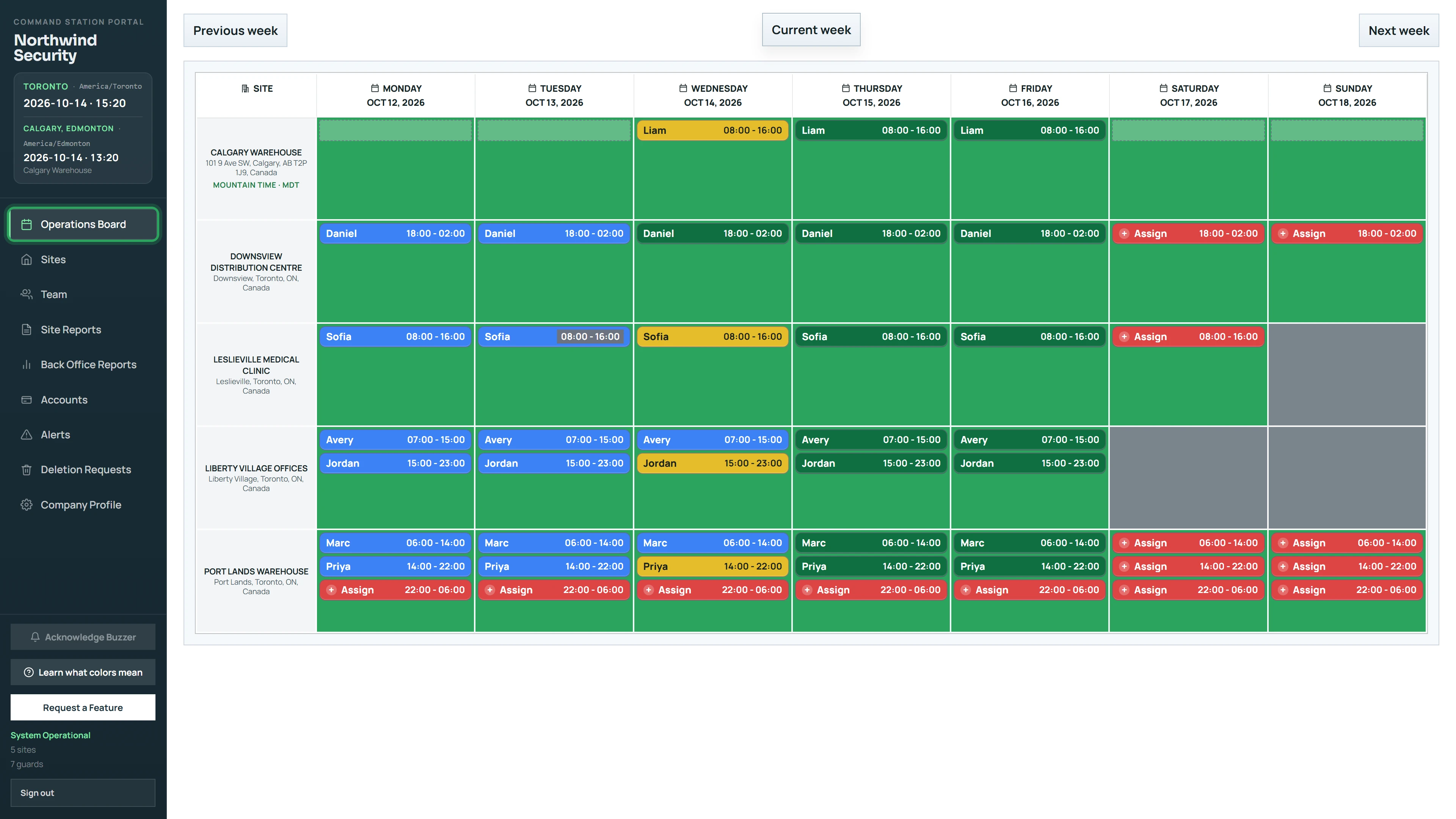
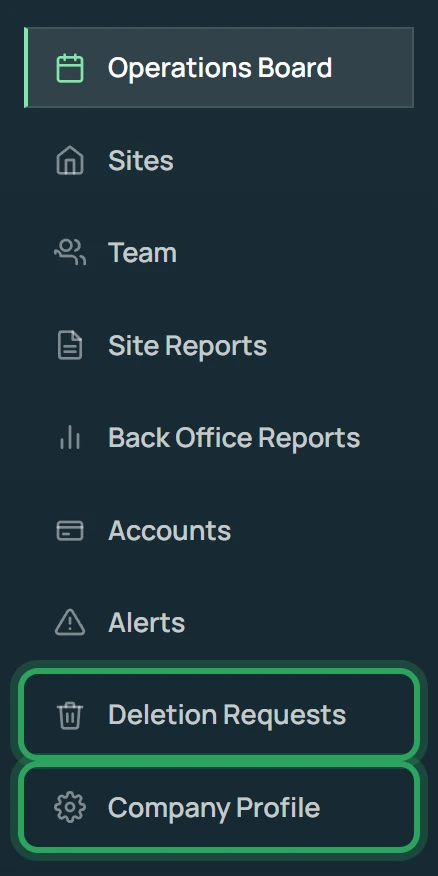
Operations Board is your weekly roster: every site down the side and every shift across the week. It's where you schedule, assign and watch shifts live.
- 2
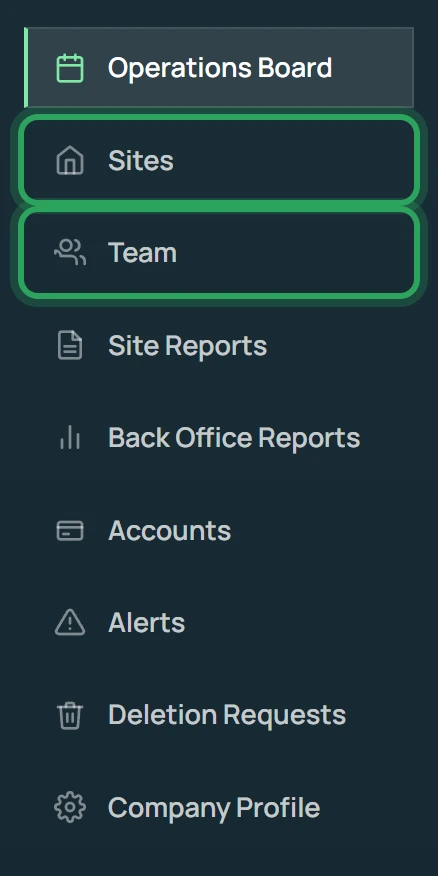
Sites holds your work sites and their geofences. Team holds your staff and their app logins.
- 3
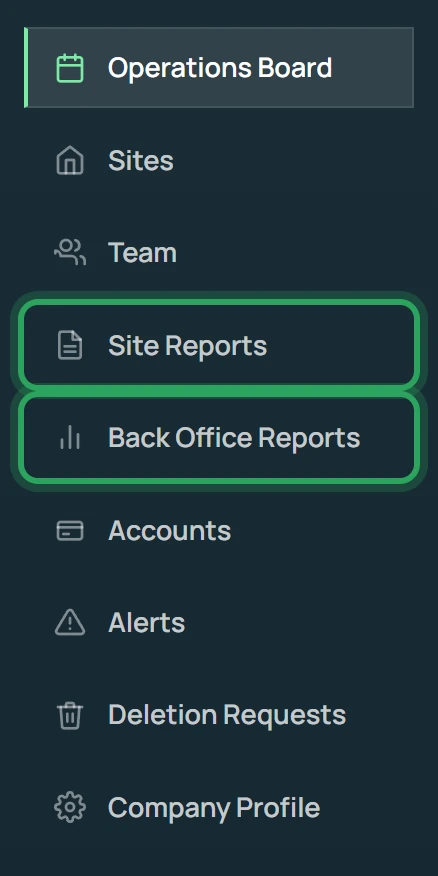
Site Reports shows daily reports, incidents and patrol scans by date. Back Office Reports has attendance, clock-in/out and payroll reports.
- 4
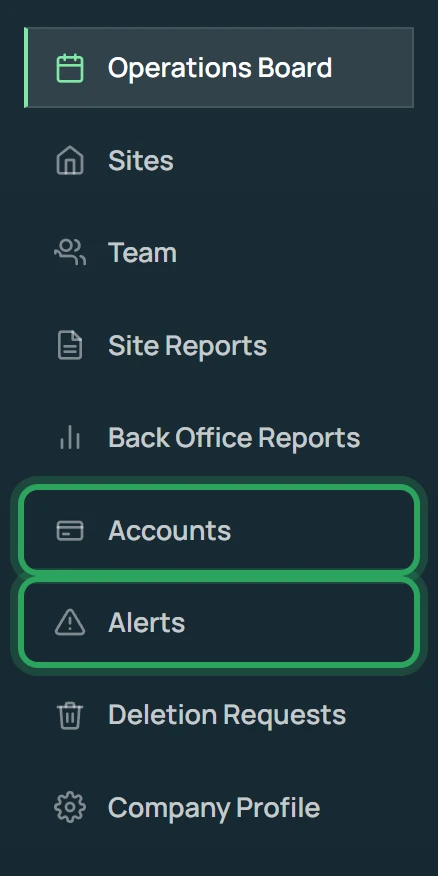
Accounts is for team pay invoices, client invoices and quotes. Alerts lists live alerts, such as a guard leaving a site's geofence.
- 5
Deletion Requests is where staff privacy requests arrive. Company Profile holds your company details and Billing.
- 6
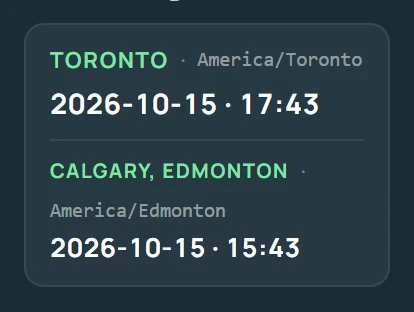
The clock at the top of the sidebar shows your company's time zone and the current date and time — the time your shifts and reports use. If some sites have their own time zone, a clock for each of those shows below it.
- 7
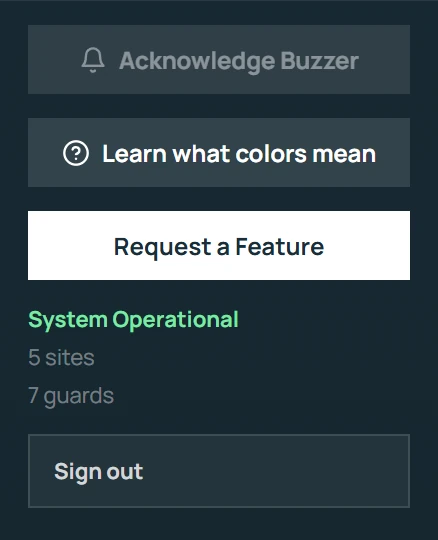
At the bottom: Acknowledge Buzzer silences an active alarm, Learn what colors mean explains the board, and Request a Feature sends us a suggestion.
- The portal remembers the last page you had open, even after a refresh.
- “System Operational” at the bottom means the portal is connected and updating live.